Event ticketing with PromptPay and cards, paid straight to you
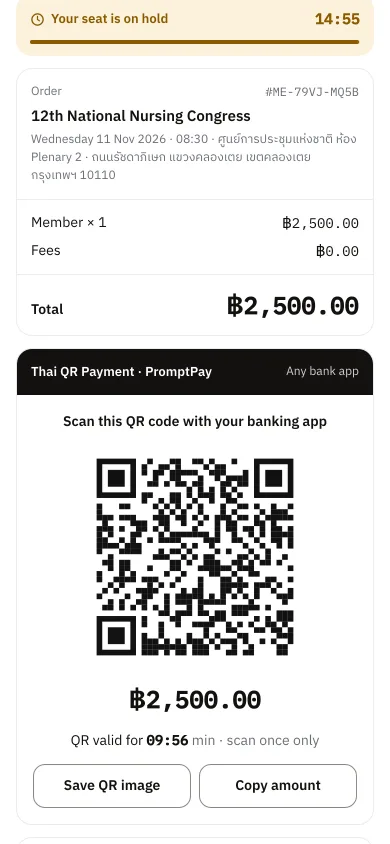
Buyers pay by Thai QR PromptPay, card, or bank transfer with a slip, and get a QR ticket by email as soon as payment clears. You see every sale in your dashboard.
What you get
-
Paid straight to the organizer
Ticket money lands in your organization's Beam account. Monday Expo never holds it. The payment page names you as the payee, so buyers know who they are paying.
-
Thai QR PromptPay and cards
Buyers scan the QR with any Thai banking app, or pay by card. Payment is confirmed automatically and the ticket goes out right away.
-
Bank transfer with slip upload
Before your Beam account is ready, or for buyers paying from a company account, attendees upload the slip with the order. Your team approves it and the ticket is sent.
-
Several ticket types
Set up general, student and group tickets, each with its own price, quantity, sales window and order limits. Hide a ticket type so only people with the link can buy it.
-
Day tickets and an all-days pass
Sell Day 1, Day 2 and all-days tickets for a multi-day conference. Scanners check the ticket's days automatically, even offline. Check-ins and sign-in sheets are split per day, and CPD only counts the days the ticket covers.
Learn more: Day tickets and an all-days pass -
Discount codes and member prices
Create codes per channel and limit their dates, uses and ticket types. Give association members their own price, checked against a member code at checkout.
-
Group orders
One buyer purchases several tickets in one order and enters each attendee's name. Everyone gets their own QR ticket by email.
-
Receipts, quotations and invoices
Buyers can ask for a receipt in their company's name, numbered in your own yearly sequence. Companies that need paperwork first can get a quotation and invoice as soon as the order is created.
-
Refunds and ticket upgrades
Refund in full or in part through Beam. Your team can move an attendee to a higher-priced ticket and they pay only the difference. Every change is logged with who did it and when.
-
Keep selling after you sell out
Open a waitlist when tickets run out. When a place frees up, the next person in line gets a time-limited link to buy it. The event page only says nearly full or sold out, never the exact count.
-
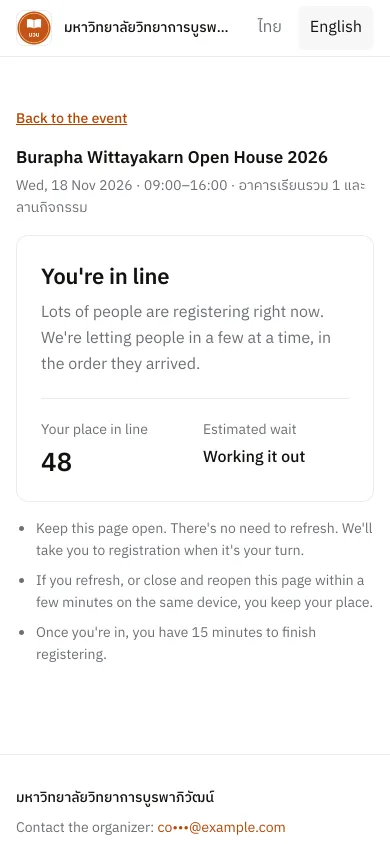
Virtual queue
On launch day, when everyone arrives at once, buyers join a fair line in order of arrival and see their place and a rough wait. When it is their turn they go straight to checkout. People already paying never wait, and the site stays up under the rush.
Paid to the organizer
Buyers pay, the money lands in your account
Ticket money goes straight into your organization's Beam account. The platform fee is 0% until 31 March 2027, then 3%, invoiced separately after the event and never deducted from your sales.
Bank transfers
Check the slip and approve on one screen
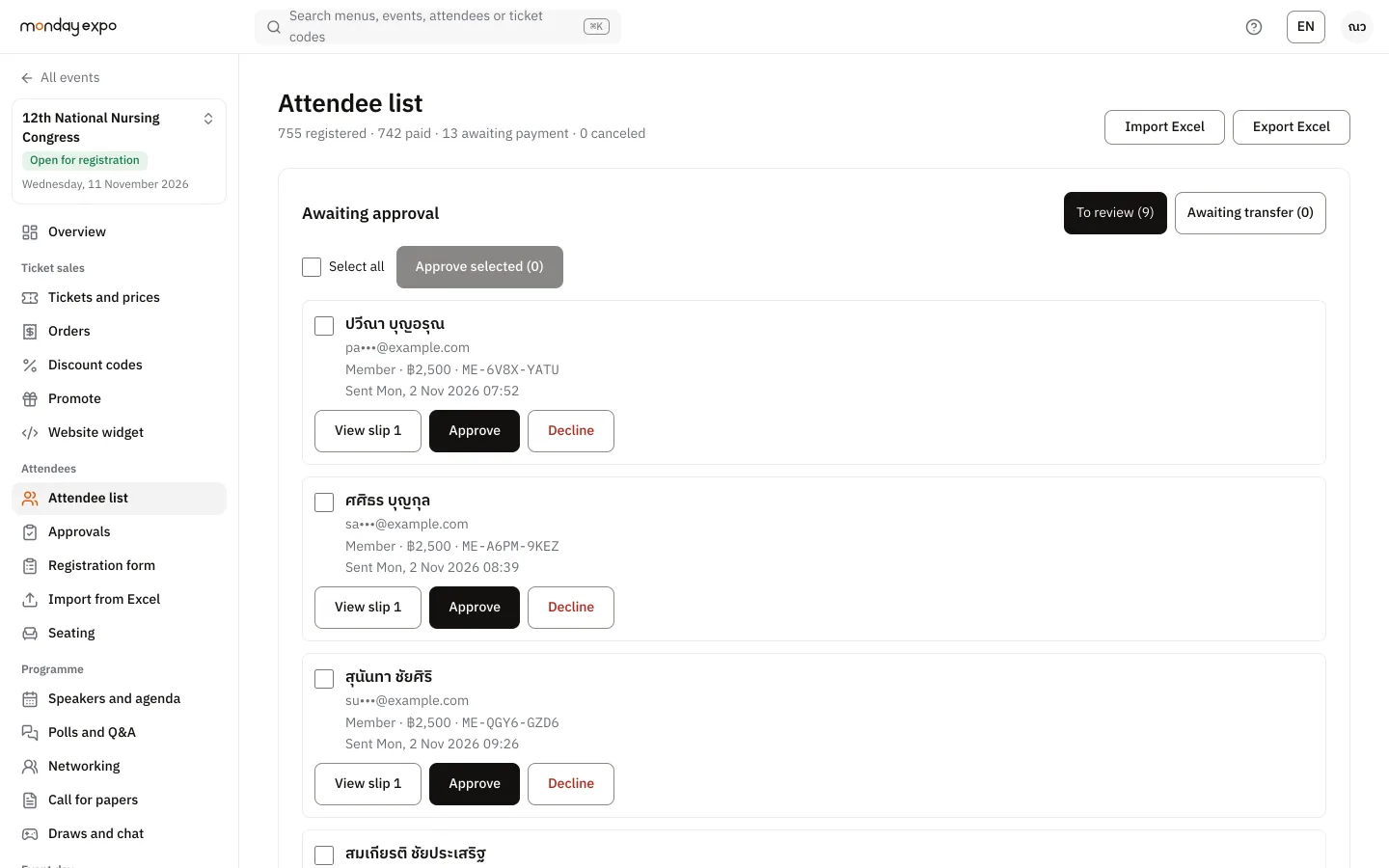
Registrants attach their transfer slip to the form. Every slip waiting for review sits in one queue, and approving it emails the QR ticket straight away.
- Approve one person or many at once
- Decline with a reason the registrant can read
- Every decision records who made it and when
Member pricing
Member prices and discount codes in one event
Give association members their own price, hand out discount codes per channel and cap how many times each can be used. The price is applied at checkout.
Multi-day events
Day tickets and an all-days pass, checked at the door
Conferences of 2 to 14 days can sell Day 1, Day 2 and all-days tickets in one event. Pick the days each ticket is valid on, and scanners keep wrong-day tickets out even when the internet drops. See how to set up day tickets
- Buyers see the valid days on the event page, QR ticket and email
- Check-ins and sign-in sheets split per day and ticket type
- CPD only counts the ticket's days. Supervisor overrides are always logged
Seat maps
Buyers pick their own seats
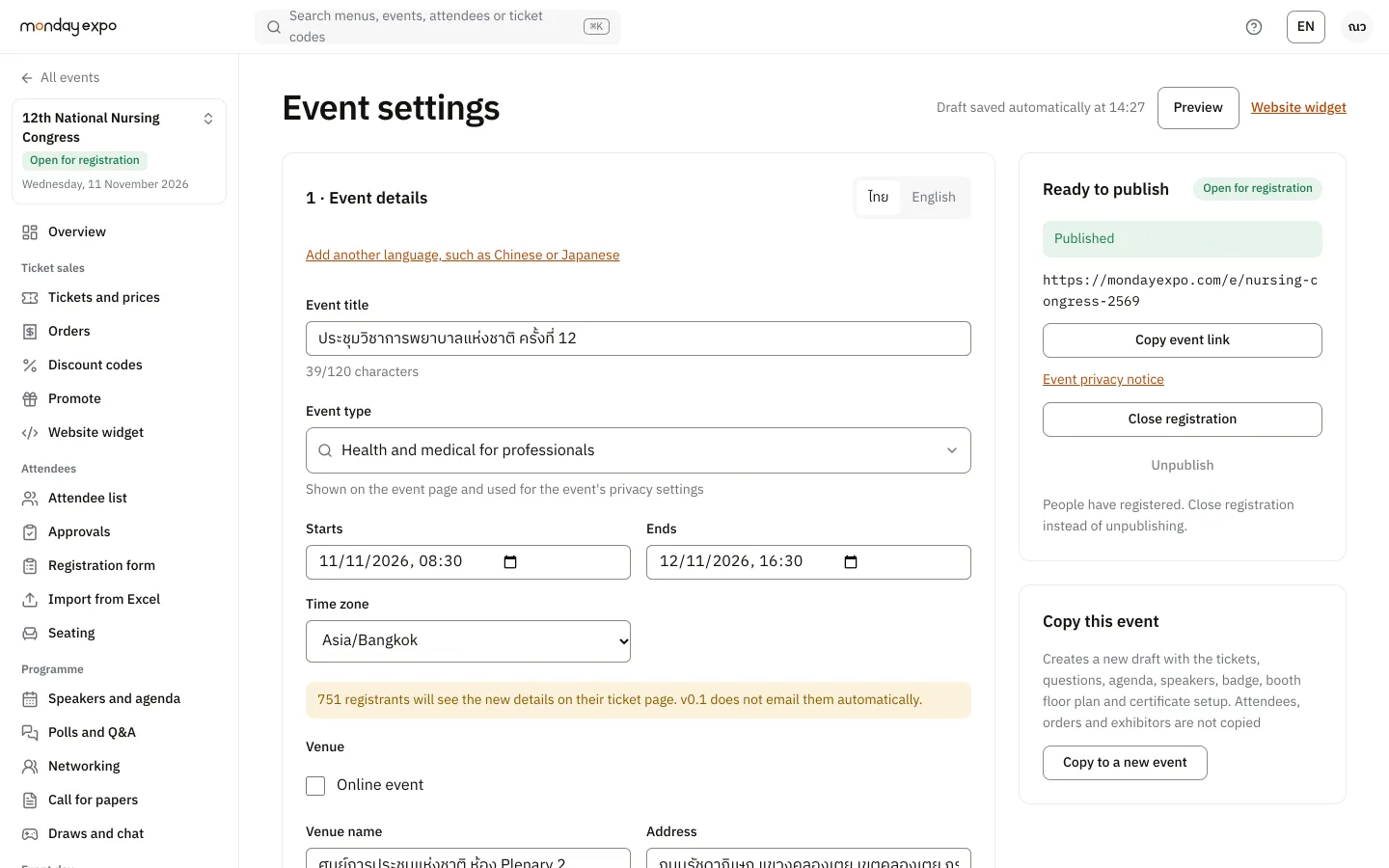
Start from a theatre, classroom or banquet template, link zones to ticket types and publish. Buyers see the free seats and choose their own, and the seat is held while they pay.
- Saves as you go, with undo
- Keep seats for wheelchair users or your team
- Available on Pro Plus and above
Waiting room
A rush of buyers waits in a fair queue
When too many people open the registration page at once, they wait in a waiting room that shows their place in line and an estimated wait. When it is their turn, they go straight to the ticket page.
- First come, first served
- Refreshing the page keeps their place
- Nobody sees it when it is quiet
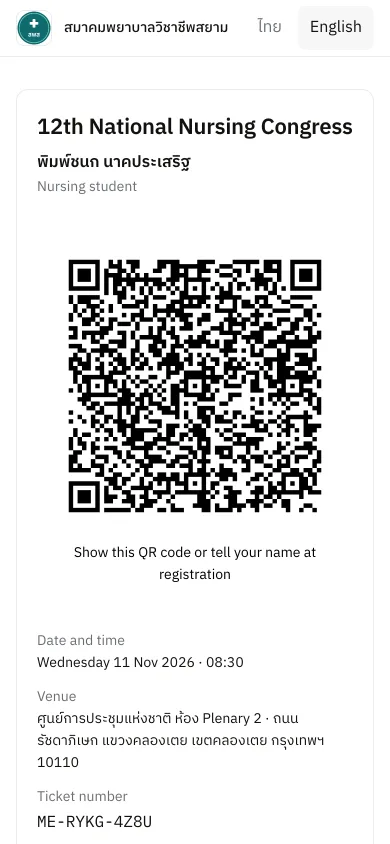
QR tickets
Paid, and the ticket is already in their inbox
Payment is confirmed with Beam automatically, then the QR ticket goes out by email. Buyers open the ticket on their phone with no app to install.
- Group orders give everyone their own ticket
- Receipts in a company name on request
- Lost the email? Buyers can request a fresh link
Data security
Attendee data in a carefully run system
Infrastructure from DigitalOcean · Cloudflare · Beam Checkout · Zoho ZeptoMail
See all security measures- SingaporeServer location
- AES-256Encryption of sensitive data
- Not storedFull card numbers and CVV
- Hash chainAudit log that shows whether anything was changed
Monday Expo is not yet certified against the standards it uses as guidance
Everything in this area
-
Paid tickets Pro and up
Cards and PromptPay QR through your own payment gateway, paid straight to you
-
Ticket types and capacity Pro and up
Separate prices for general, student or group tickets, each with its own limit
-
Day tickets for multi-day events Pro and up
Day 1, Day 2 and all-days passes, checked by day at the door
-
Member prices and discount codes Pro and up
Special prices for association members, plus discount codes
-
Bank transfer with slip
The buyer uploads a slip, you approve and the ticket is emailed
-
Group orders
One buyer buys several tickets and names each attendee
-
Waitlist Pro and up
When tickets sell out, people join a waitlist and are told when a seat opens
-
Seating chart Pro Plus and up
Buyers pick their own seat or banquet table
-
Multi-currency tickets Pro and up
Price tickets in baht or another currency per event
-
Receipts and tax invoices
Buyers request company receipts with automatic numbering
-
Refunds and cancellations
Full or partial refunds through Beam, every one recorded
-
Virtual queue
When everyone arrives at once, buyers wait in a fair line and the site stays up
Frequently asked questions
Whose account does the ticket money go to?
Straight into the organizer's Beam account. Monday Expo never holds it. For bank transfers, buyers pay into the bank account you entered.
What are the fees?
Right now the platform fee is 0% for ticket sales paid until 31 March 2027. After that it is 3% of net ticket sales across all payment methods, invoiced after the event. Beam's own fees are between you and Beam. Free events have no platform fee.
How do I get a Beam account?
Apply to Beam Checkout in your organization's name, then enter the Merchant ID and API key under payment settings. While Beam reviews you, you can sell with bank transfer and slip upload.
Can I sell day tickets for a multi-day event?
Yes. Create a ticket for each day plus an all-days pass on the tickets page and pick the days each ticket is valid on. Scanners keep a Day 1 ticket out on day 2, even when the internet drops. A supervisor can let someone in with a PIN, and every override is logged. The day tickets guide in the help center shows the setup.
Can I sell in another currency?
Yes, but Beam only accepts Thai baht, so events priced in another currency can only take bank transfers with slip upload.
A buyer paid but never got the ticket. What now?
We recheck payment status with Beam regularly and send the ticket once the payment is confirmed. Buyers can request a fresh ticket link from My tickets, or your team can resend it from the attendee list.